


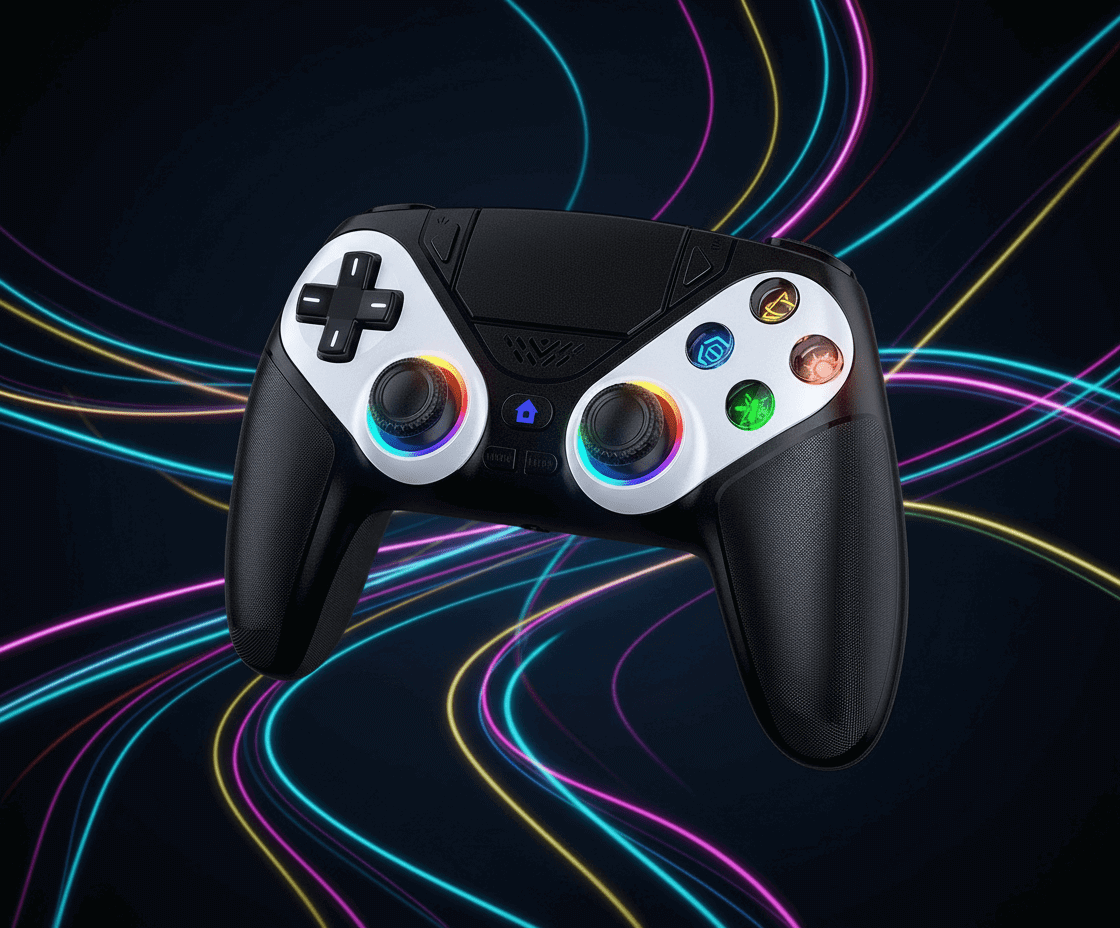
Questions fréquemment posées
Trouvez des réponses aux questions courantes sur nos produits et services
Nous offrons un remboursement complet dans les 14 jours suivant votre achat sans retour produit si endommager. Les articles doivent être dans leur état d'origine avec tous les emballages et accessoires inclus. Une fois votre demande de remboursement approuvée, le montant sera crédité sur votre compte dans un délai de 5 à 7 jours ouvrables.
La livraison standard prend généralement 7 à 15 jours ouvrables.
Oui, nous livrons dans la plupart des pays du monde.
Tous nos appareils électroniques sont couverts par une garantie fabricant. Les périodes de garantie varient selon le produit et sont détaillées sur chaque page produit.
Une fois votre commande expédiée, vous recevrez un numéro de suivi par e-mail. Vous pouvez l'utiliser pour suivre l'état de votre livraison.
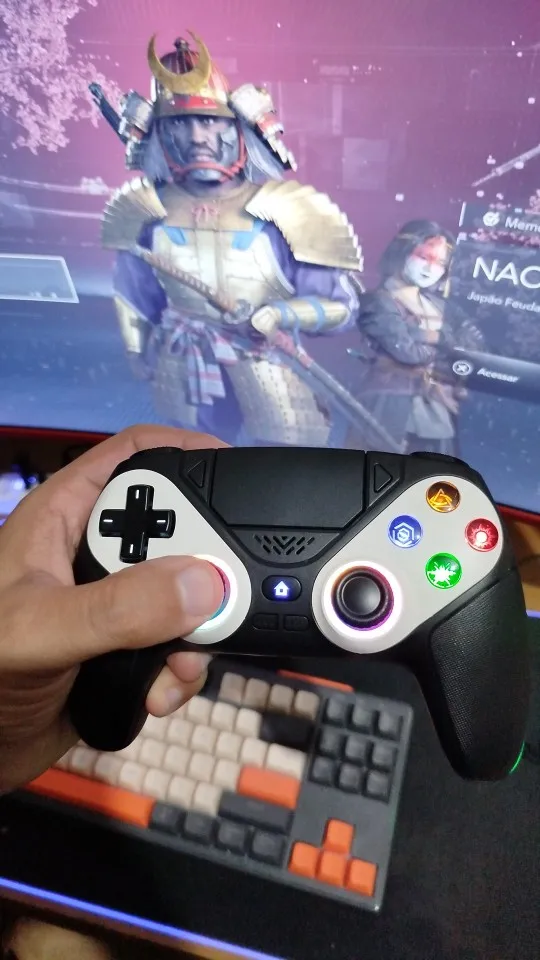
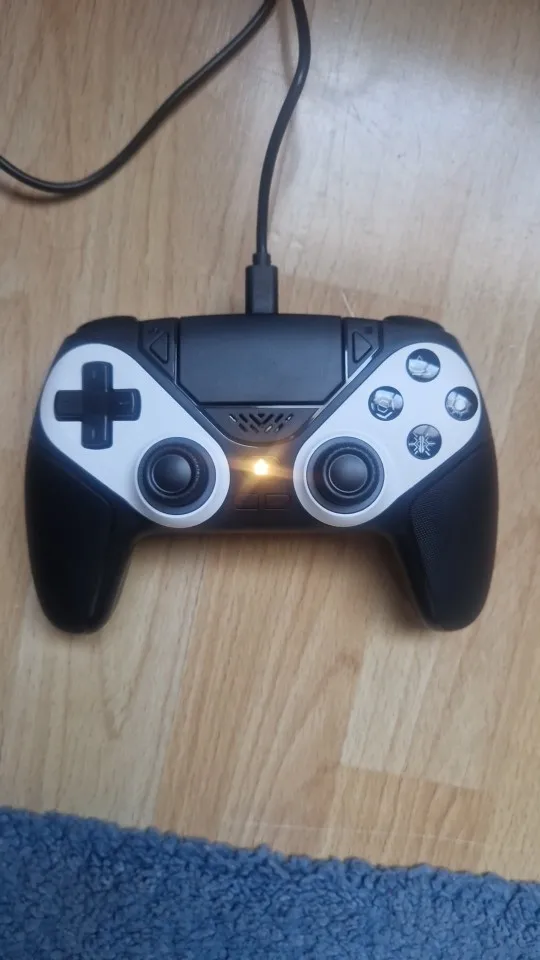
Collection Smart
-
Support de Charge Sans Fil Magnétique pour Smartphone – 15W Recharge Rapide
Regular price From 40,99€Regular price From 40,99€ Sale priceUnit price per55,99€Sale -
Coque iPhone Silicone Blocs de Construction – Design Cartoon Géométrique
Regular price 23,90€Regular price 23,90€ Sale priceUnit price per -
Coque MagSafe Blindée Mate pour iPhone 16 / 15 / 14 / 13 / 12 / 11 – Protection Premium
Regular price 23,90€Regular price 23,90€Unit price per -
Redmi Note 14 Pro 5G Protective Case – Durable and Stylish
Regular price 23,90€Regular price 23,90€ Sale priceUnit price per29,90€Sale


Why You'll Love It
This product seamlessly blends functionality and style, offering the perfect solution for your modern lifestyle. Packed with innovative features, durable design, and user-friendly functionality, it's tailored to meet your everyday needs. Whether it's work, play, or staying connected, this gadget simplifies your tasks and enhances your experience.
Solution Premium
ShopElectro propose une sélection curatée d'accessoires électroniques et de périphériques gaming conçus pour les utilisateurs exigeants. Chaque produit est sélectionné pour sa qualité, sa fiabilité et ses performances supérieures. Que vous soyez professionnel, gamer ou utilisateur quotidien, nos articles combinent innovation technologique et durabilité. Nous nous engageons à offrir des solutions premium qui améliorent votre productivité et votre expérience numérique, avec un service client attentif et une garantie de satisfaction.
| ShopElectro | Autres | |
|---|---|---|
Support client réactif |
||
Qualité Premium |
||
Paiement sécurisé |